
AI Text to Image Generator
Turn written prompts into original AI images online. Describe the subject, style, and composition, then generate and refine your result.
Quick start
How to Turn Text into an Image
A text-to-image generator turns a written prompt into a new image. Describe the subject, add style and composition details, and choose an aspect ratio before you generate.
- 1
Write a clear text prompt
Name the subject first, then add style, setting, composition, lighting, colors, or exact words that should appear in the image.
- 2
Choose the model and format
GPT Image 2.5 is the default. You can also choose Seedream 5.0 Pro, Nano Banana, FLUX.2, or Qwen Image, then set your aspect ratio.
- 3
Generate, compare, and refine
Create the image, keep the strongest result, then adjust the prompt or switch models when you want a different interpretation.
Text-to-Image Examples and Prompts
See images created from real text prompts. Click an example to place its prompt in the generator and adapt it to your idea.
What You Can Create with Text-to-Image AI
Create images from text prompts
Describe a subject, setting, style, lighting, and camera angle in natural language. The generator turns those details into a complete image.
Explore visual ideas quickly
Generate fast drafts when you are testing a concept, then refine the strongest composition instead of starting over each time.
Make marketing and product visuals
Create product scenes, social graphics, poster concepts, thumbnails, and campaign artwork from one written brief.
Keep a consistent art direction
Repeat important details such as palette, character traits, materials, and lighting to build a more consistent visual series.
Generate multiple variations
Create several versions of a prompt, compare the compositions, and continue with the result that best matches your idea.
Create images in the right format
Choose square, portrait, landscape, widescreen, or vertical framing before generation so the composition fits its final use.
Turn a prompt into something you can use
Direct the look, choose the right model, and compose the image for the place it needs to work.
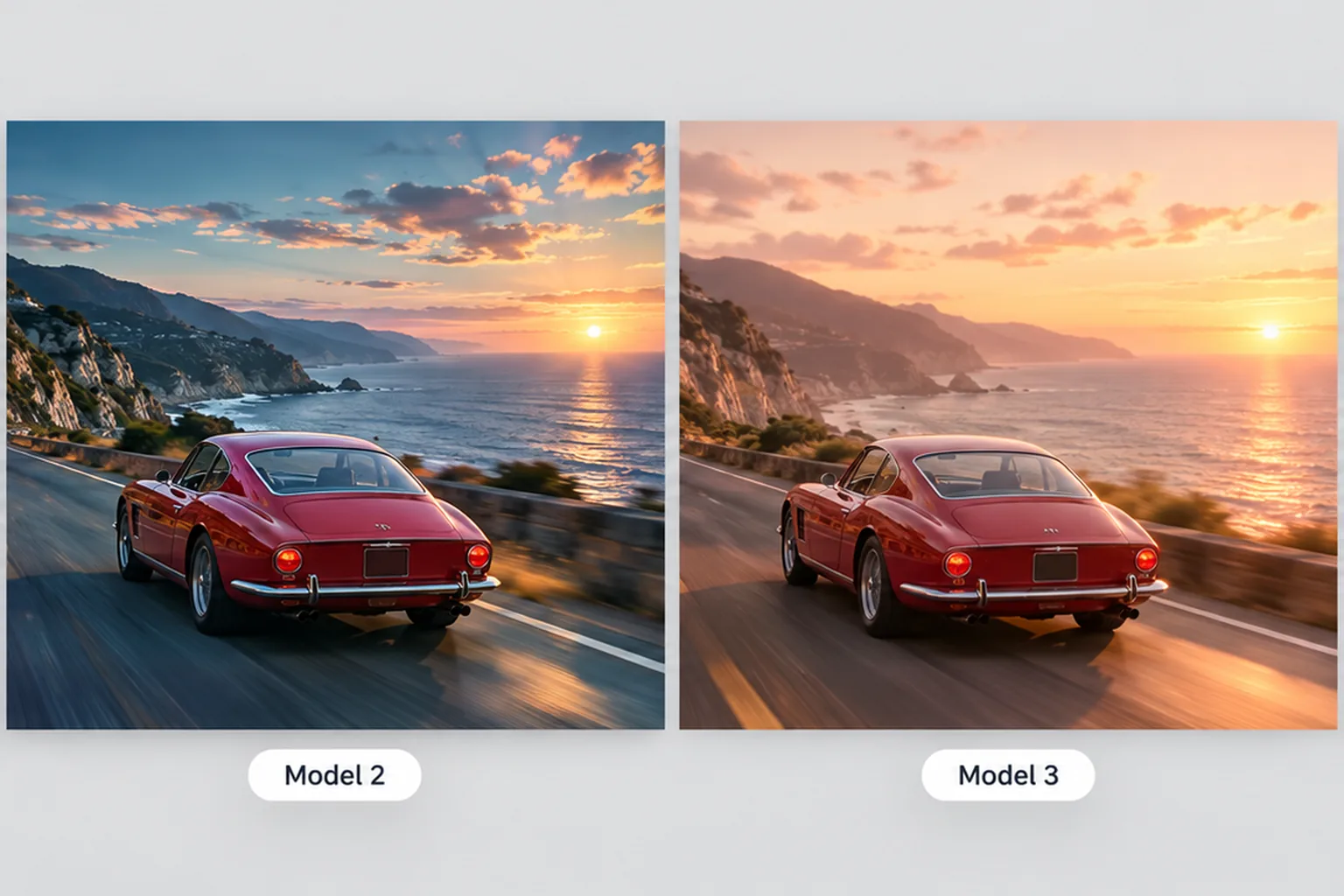
One prompt, several ways to render it
Start with GPT Image 2.5, the default model, or choose Seedream 5.0 Pro, Nano Banana, FLUX.2, or Qwen Image. Compare how each model interprets the same image prompt.
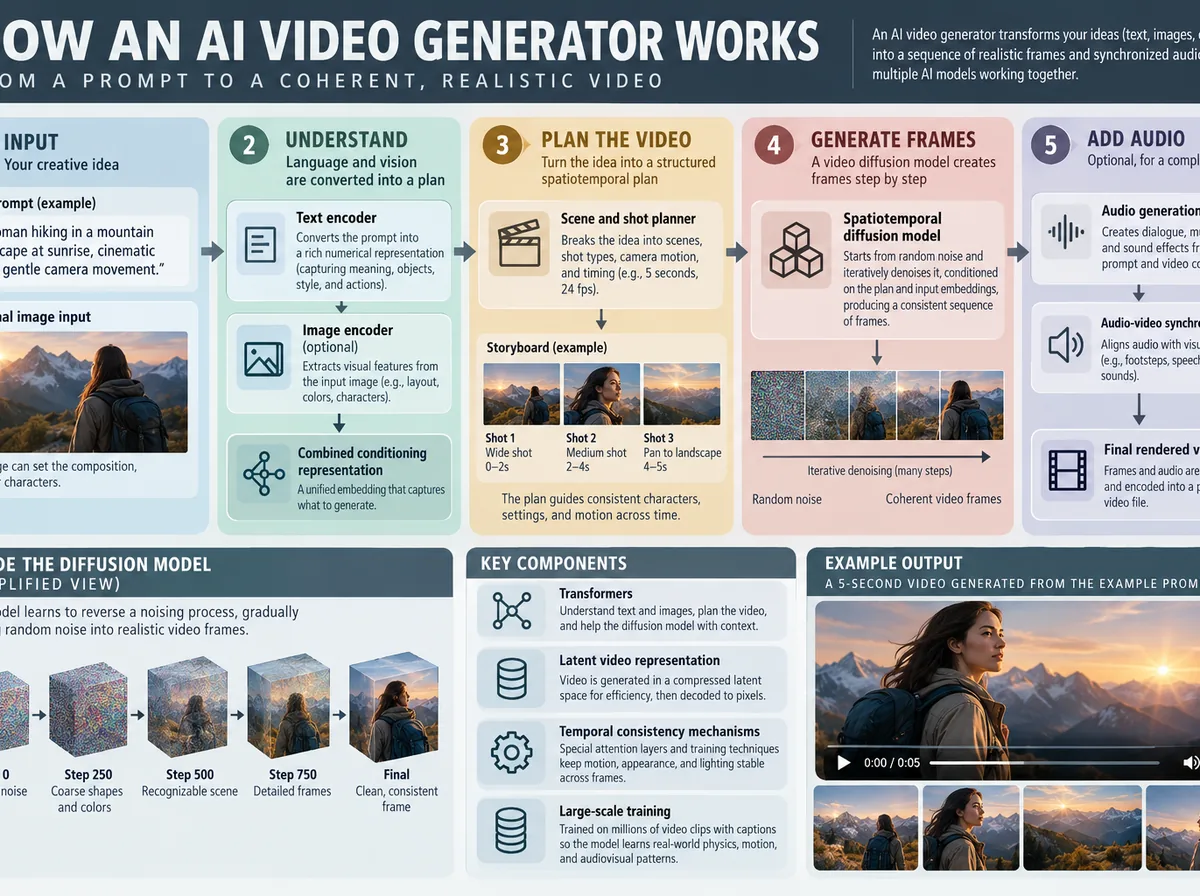
Make text part of the image
For posters, diagrams, packaging, and title cards, include the exact wording in your prompt. Start with GPT Image 2.5 and check the generated text before using the image.
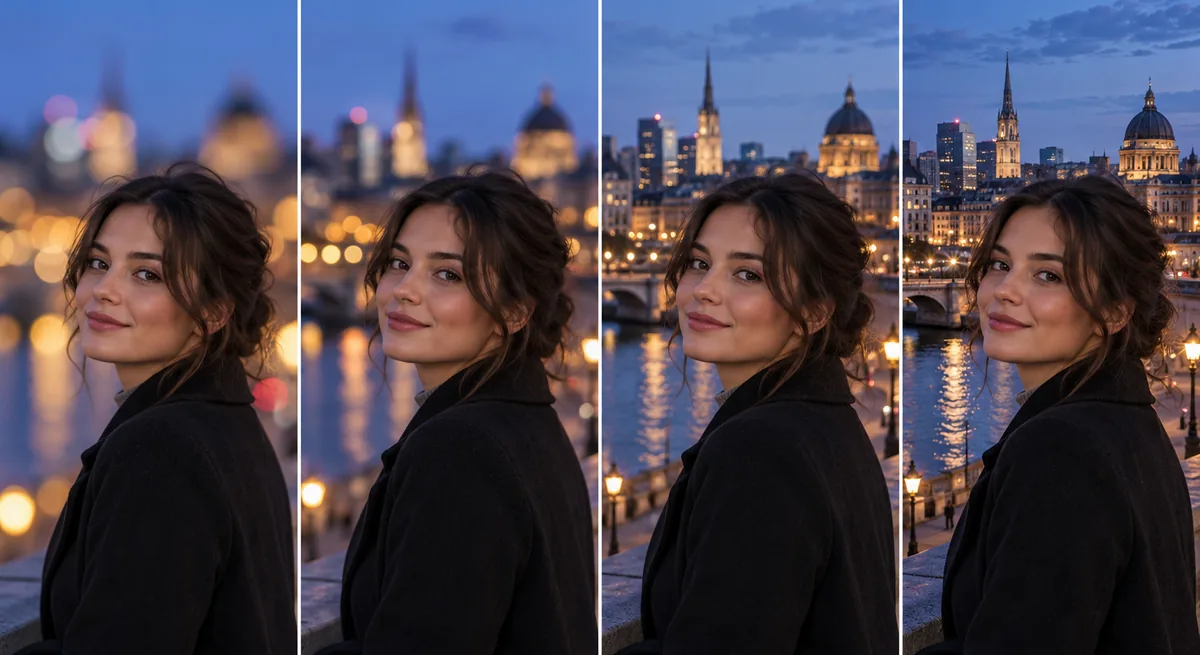
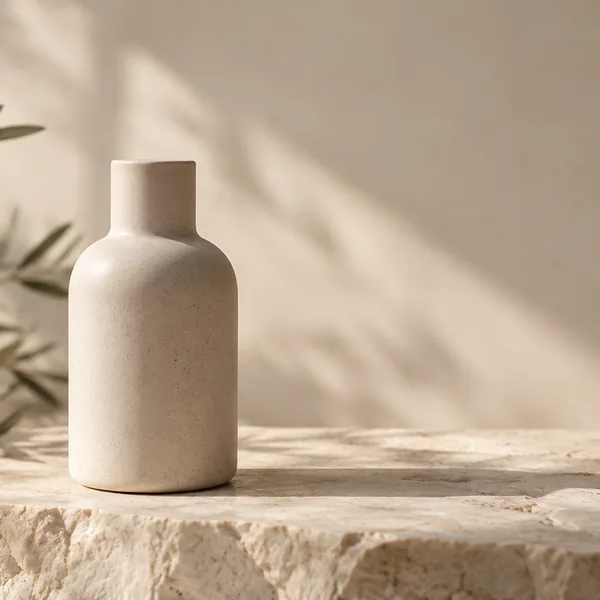
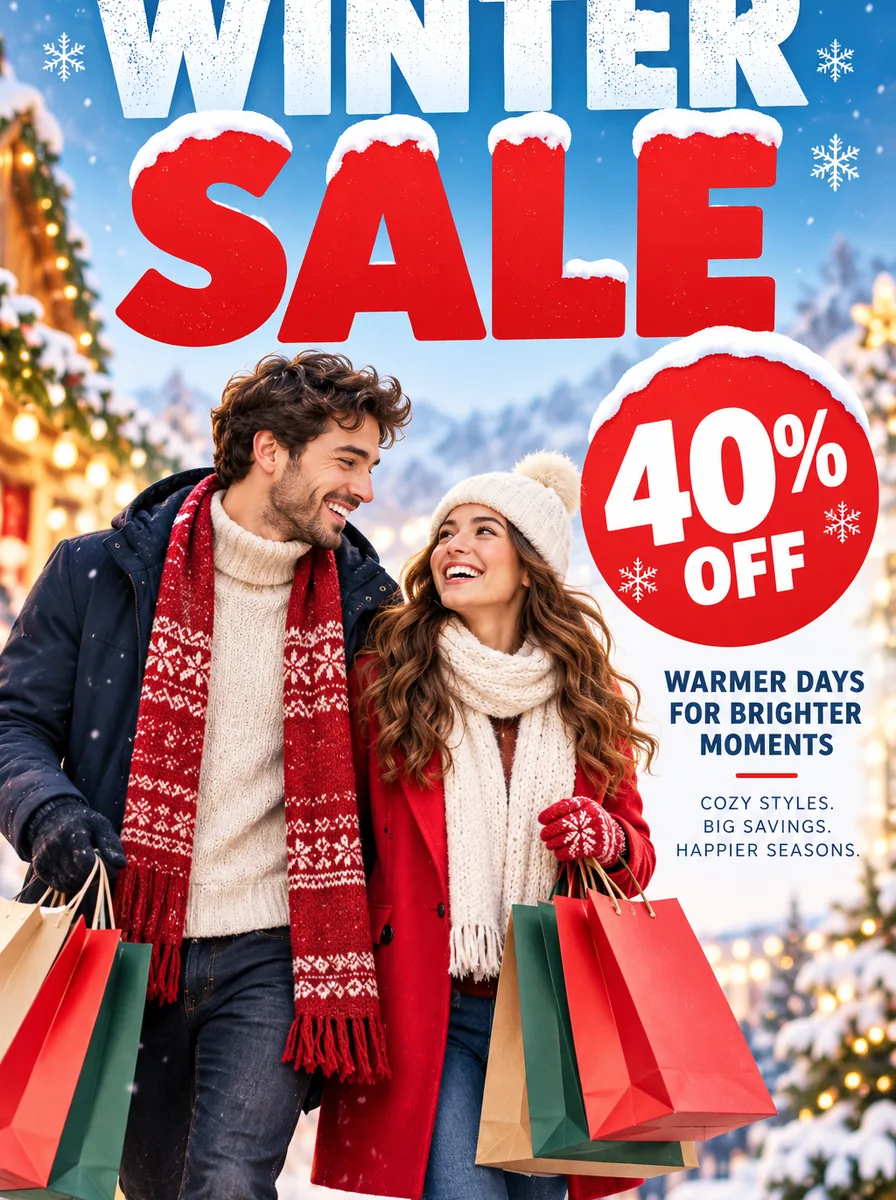
Compose for the final frame
Choose square, portrait, landscape, or widescreen before generation so the subject, negative space, and layout are designed for the destination instead of cropped into it afterward.
Text to Image FAQ
Answers about creating AI images from text, writing prompts, credit costs, commercial use, and supported formats.
What is a text-to-image generator?
A text-to-image generator is an AI tool that creates images from written prompts. Describe the subject, style, and composition, and the model generates a new image based on your instructions.
How do I create an AI image from text?
Enter a prompt that describes the subject, style, setting, composition, and lighting. Choose a model and aspect ratio, then generate. You can edit the prompt and run it again to refine the result.
How much does text-to-image generation cost?
Each generation is paid with credits, and the credit cost is shown before you generate. Results have no watermark. Signing up does not grant credits, and there is no free trial.
Can I use AI-generated images commercially?
You can use the results commercially when you have the right to use the inputs. You must follow the Acceptable Use Policy.
How do I write good text-to-image prompts?
Start with the main subject, then add the setting, style, composition, lighting, color palette, and important details. Put exact wording in quotation marks when the image needs visible text.
Which image sizes and aspect ratios are supported?
The generator supports 1:1, 4:3, 3:4, 16:9, 9:16, 21:9, and 9:21, plus an automatic option. These formats cover profile images, social posts, presentations, banners, and phone wallpapers.
Create an AI Image from Text
Write a prompt, choose the format, and generate your first image online with credits. The cost is shown before you generate.