
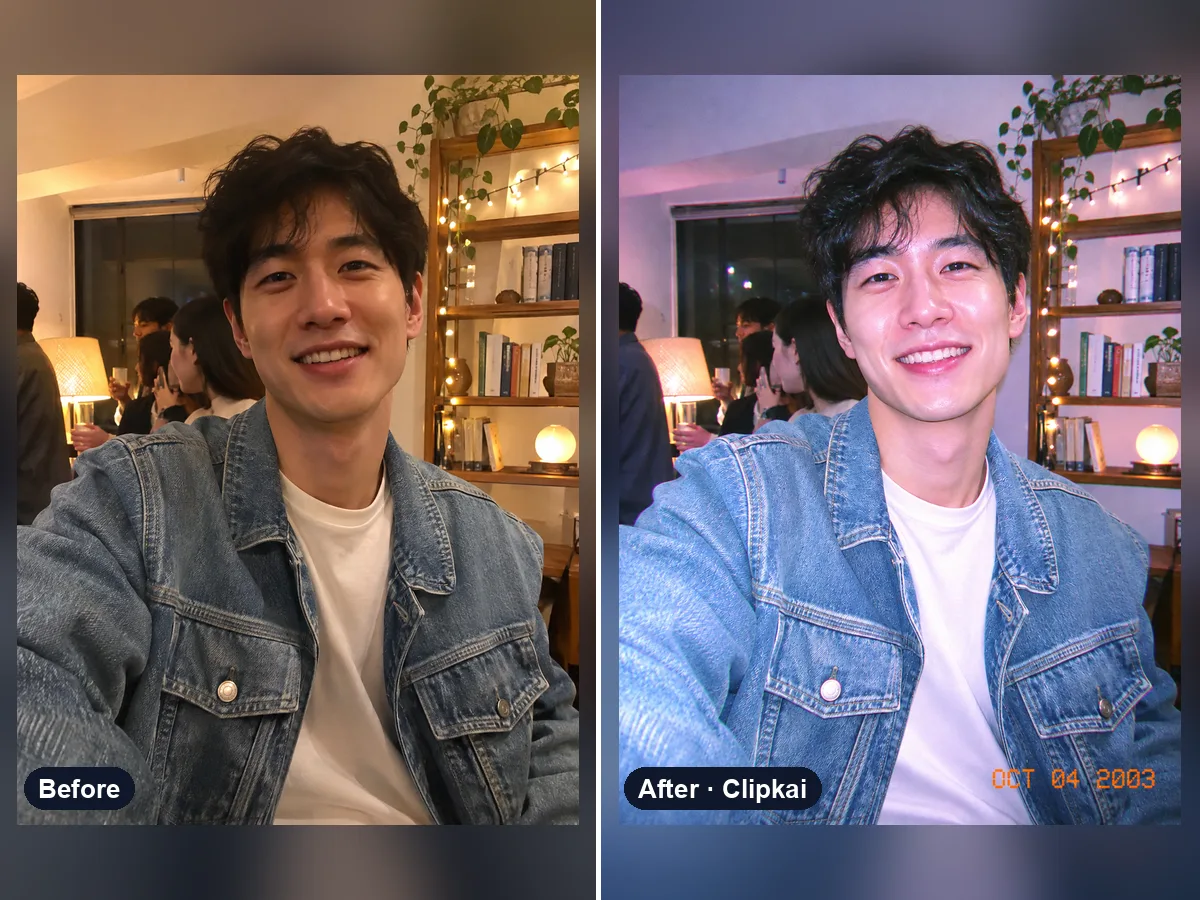
Y2K Filter
Upload a photo, get the flash-lit 2000s digicam look.
12 creditsUpload a filtered photo, get a natural, unfiltered version back.
By generating, you confirm you have the right to use this photo and the person shown is an adult who agreed to it. No celebrities, no minors. Acceptable use
Remove Filter From Photo costs 12 credits per image and is usually ready in under a minute. New accounts get 12 free credits; after that, credits come in one-time packs with no subscription.
Also searched as: filter remover · photo filter remover · unfilter photo · remove beauty filter · remove snapchat filter from photo · remove tiktok filter
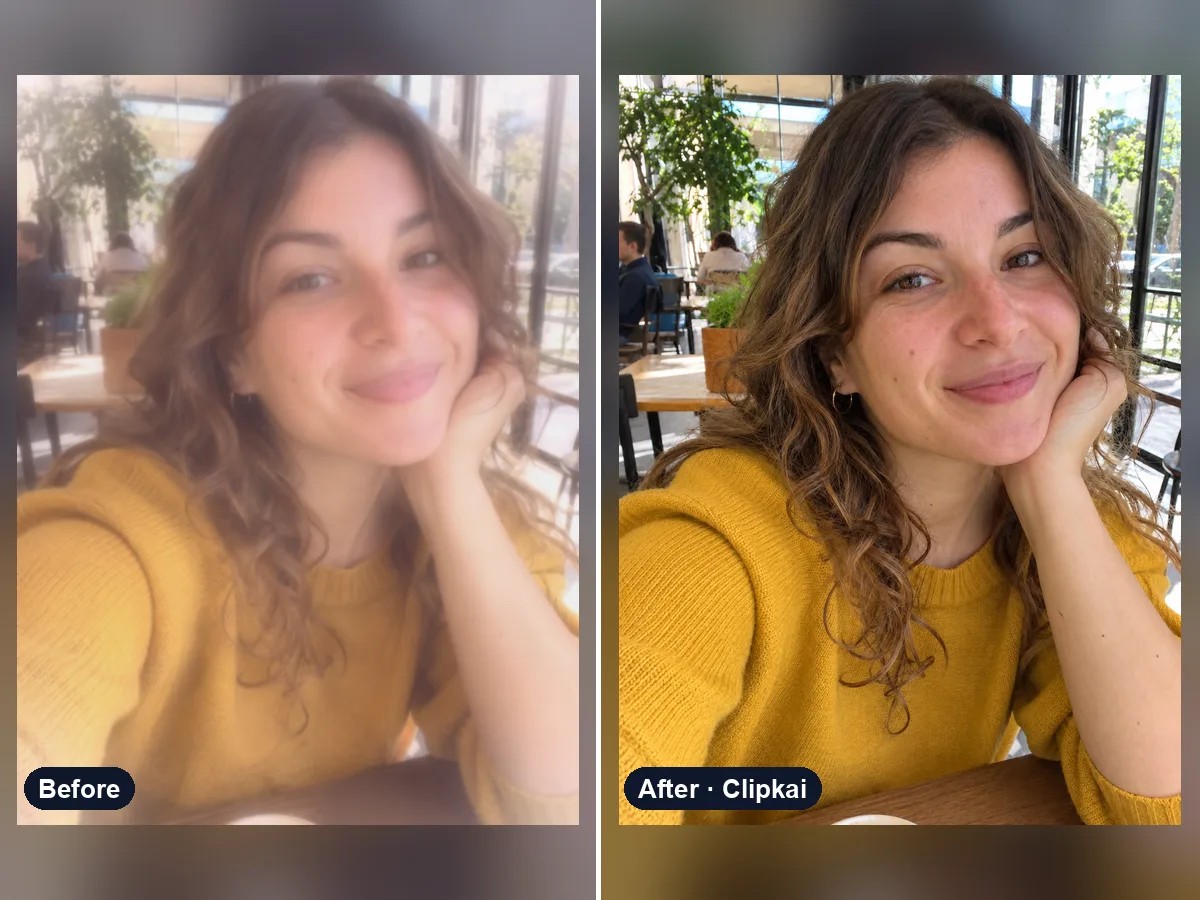
A filter remover is an AI photo editor that undoes the look a filter added — smoothed skin, a color tint, glow, vignette or an AR sticker — and rebuilds what the photo plausibly looked like before. It does not decode the original file; it re-creates natural colors and skin texture while keeping the same person, pose and background.
Beauty filters, Instagram presets and TikTok or Snapchat effects are baked into the saved photo, so there is no “undo” button once the picture is shared. This filter remover takes the filtered image and rebuilds a natural version: real skin texture instead of plastic smoothing, neutral white balance instead of a warm or teal cast, and normal contrast instead of a hazy glow.
It works on selfies, portraits and everyday photos. Use it to see what a photo looked like before the “invisible” TikTok filter, to clean up an old picture someone ran through a heavy preset, or to get a neutral starting point before you edit the photo your own way.
Need a specific fix? Add a note such as “remove the dog ears sticker”, “keep the black and white but remove the blur”, or “only remove the orange tint”. For blurry or low-quality photos, run it through the Photo Enhancer afterwards.
Want a filter instead of removing one? Try the Y2K filter for an early-2000s digital camera look.
Each image costs 12 credits, shown on the button before you confirm. If a generation fails, the credits go back to your balance automatically.
See credit packsResults are AI-generated and can vary between runs. Trend names belong to their respective owners; templates on this site are independent and unaffiliated.
Upload a picture, get a description, a prompt or alt text.
Upload a photo, get the outfit described piece by piece.
Upload a photo of a logo, product or item — get the most likely brand and why.
Upload a photo of a shoe — get the most likely brand, model and where to search.
Upload a selfie — get a best guess of your age, a range and the cues behind it.
Describe an animal and a style; get the picture in about a minute.
Describe the symbols and colors that stand for your family; get a crest in about a minute.
Click a color to make it transparent, or turn the picture black and white. Free and private.
Upload a photo, get the flash-lit 2000s digicam look.
12 credits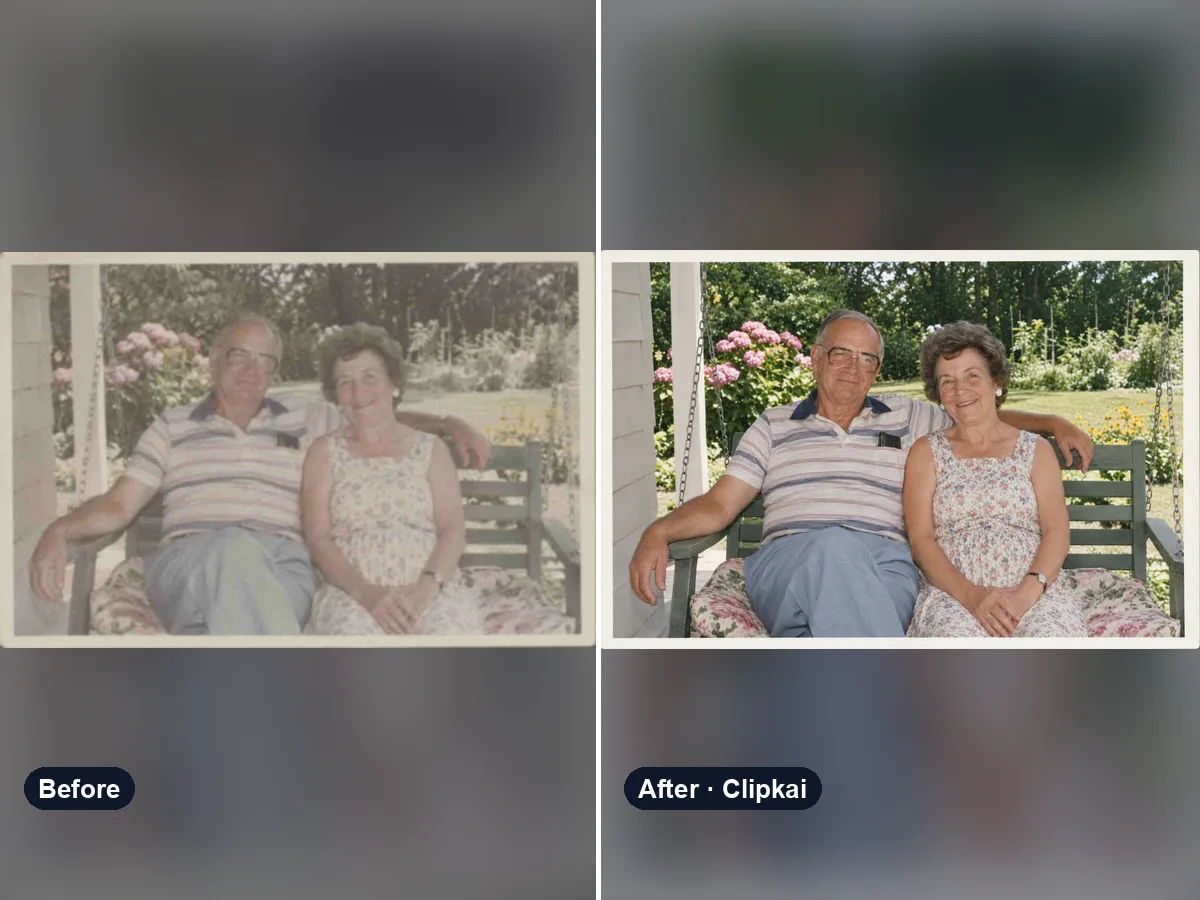
AI photo enhancer that fixes blur, noise, color and lighting in one click.
12 credits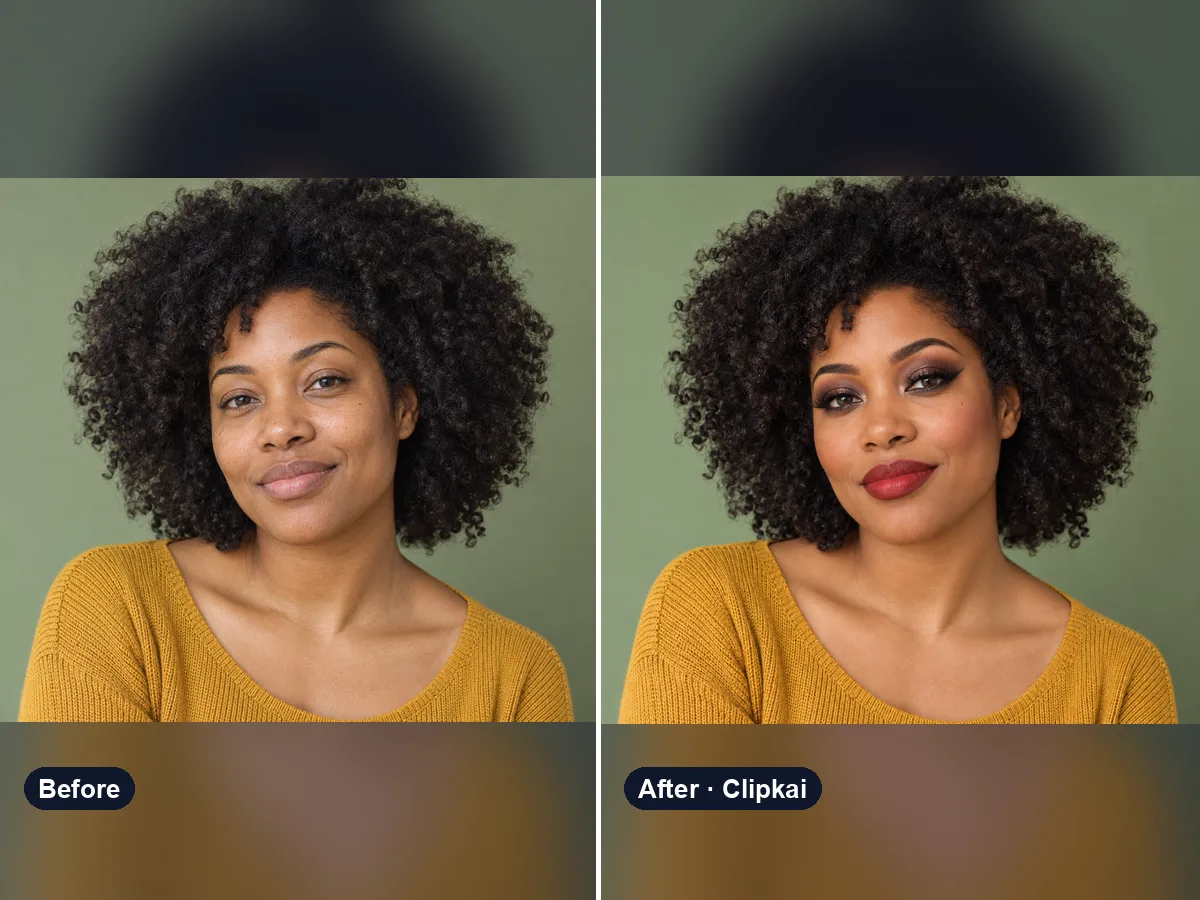
Upload a selfie, describe a look, see it on your face.
12 credits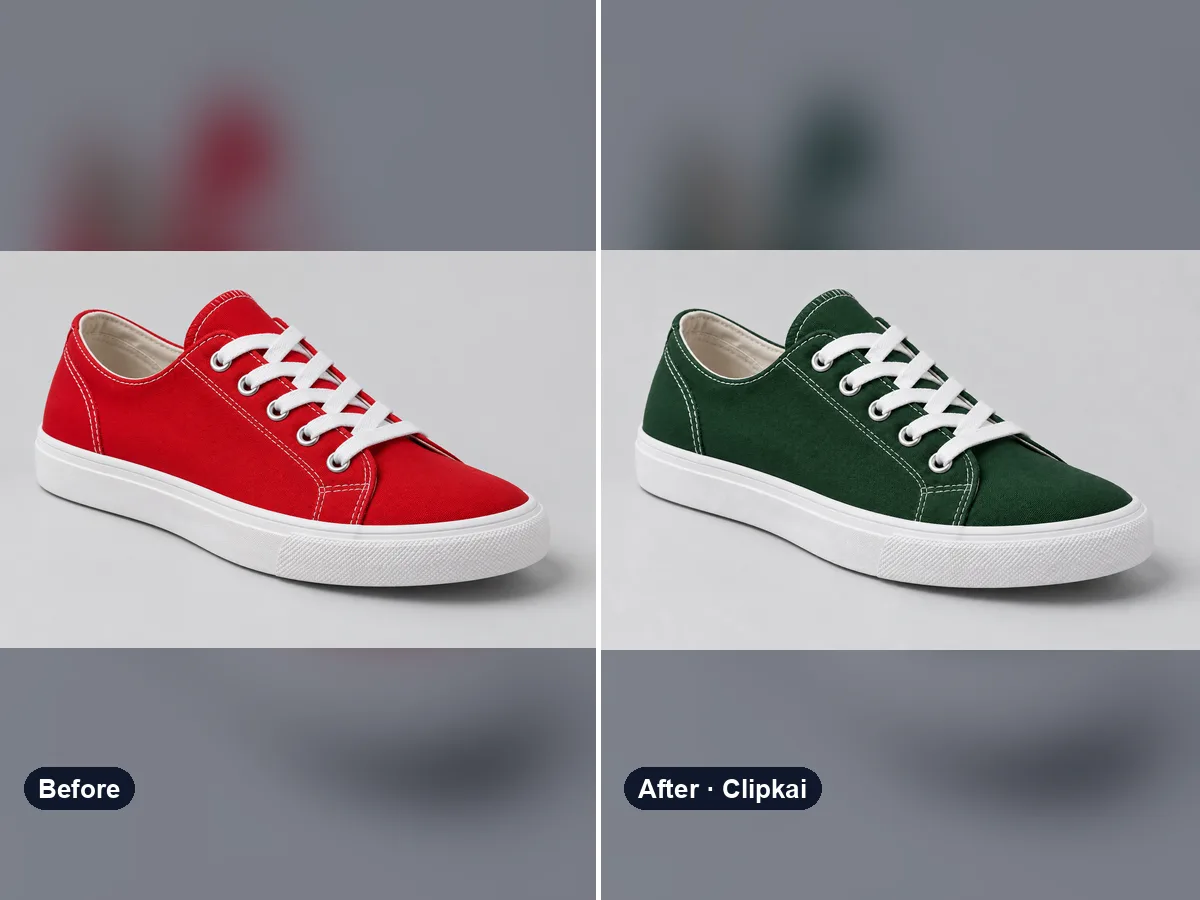
Upload a photo, say what to recolor, get a realistic result.
12 credits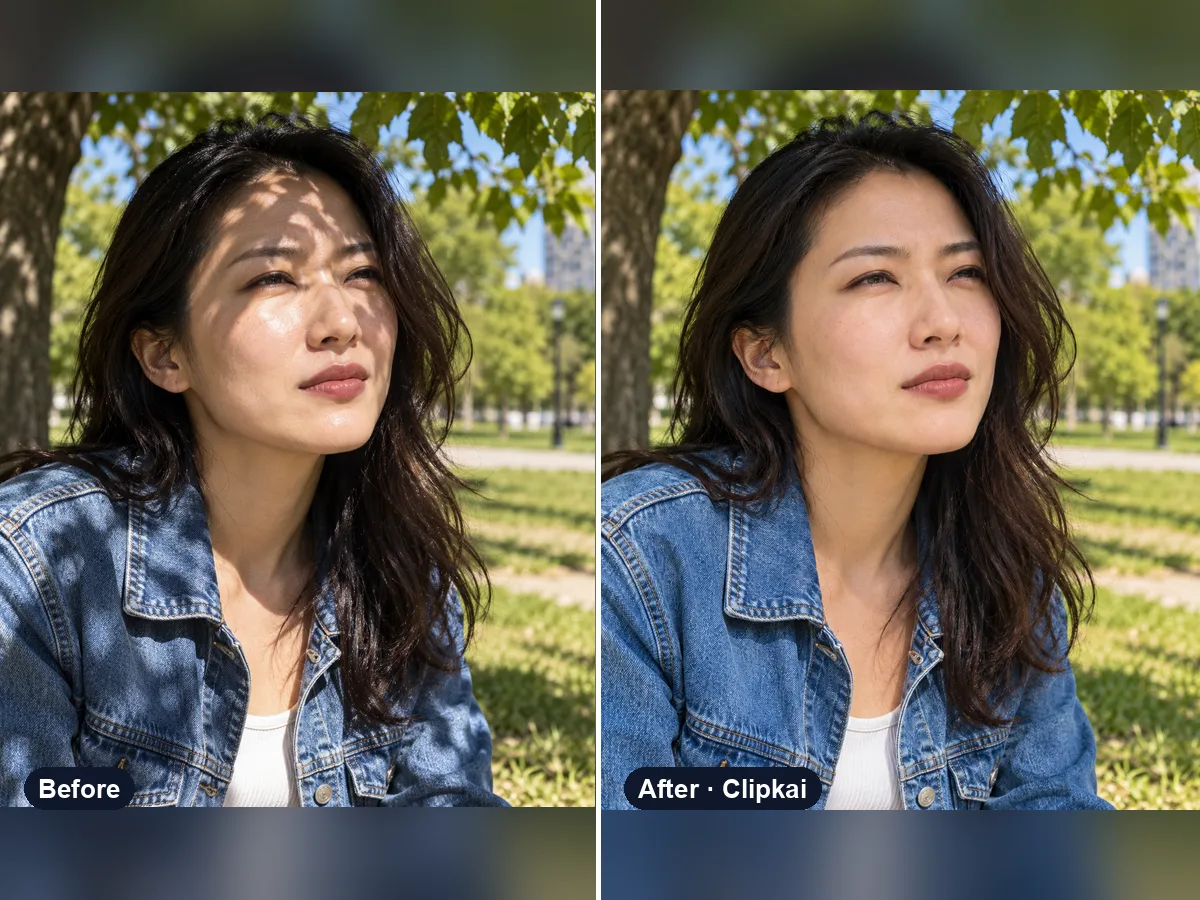
Upload a harshly lit photo, get even, natural light.
12 credits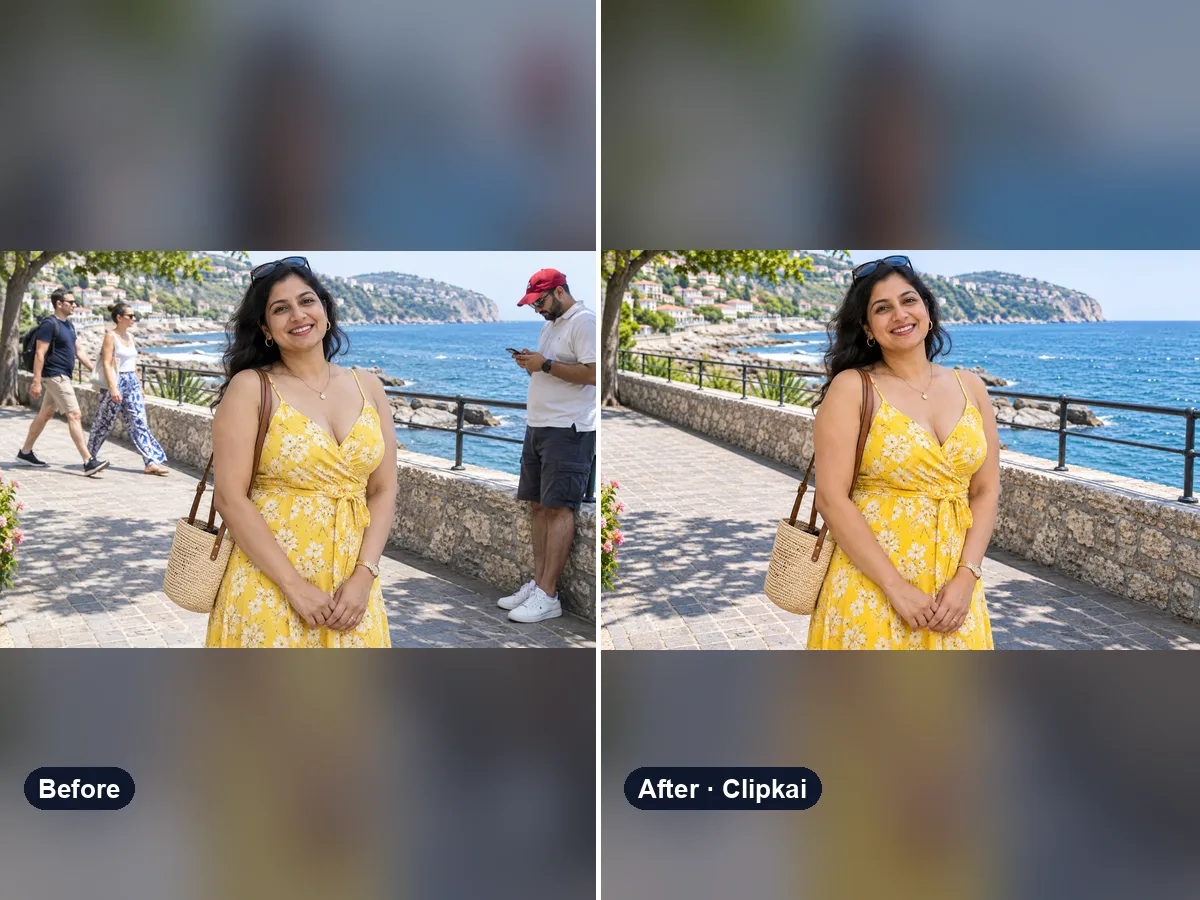
Upload a photo, say who should go, get a clean picture back.
12 credits